Data Stores

A Data Store is a BPMN construct that represents a storage location where data is stored, retrieved, and can be accessed among multiple process instances, including different process models. It can represent a database, a file system, or any other storage mechanism.
When to use
You might use a Data Store when it is not sufficient for data to be accessible in just a single process instance, but it needs to be shared across different process instances. If you have a use case where you need to store data and access it from multiple different process instances, you could also consider using a Service Task to contact a database external to SpiffWorkflow, either via a database library in a connector or using a database via an API. All of these mechanisms work well in SpiffWorkflow, so the choice will depend on your storage and performance requirements.
Access Control and Hierarchical Scoping
Data stores use hierarchical scoping based on process group locations. This allows data stores to be shared across related process groups while maintaining appropriate access boundaries.
How It Works
When a process accesses a data store, the system searches upward through the process group hierarchy to find a matching data store by identifier:
Search starts at the process’s current location
Continues up through each parent location
Ends at the root level (
"")Returns the first (most specific) match found
Closest Match Priority: When multiple data stores share the same identifier at different hierarchy levels, the most specific (deepest) location takes precedence.
Unidirectional Inheritance: Child process groups can access data stores defined in parent locations, but parent process groups cannot access data stores defined in child locations.
Example
For a process at location site-administration/reporting/monthly:
Search order:
  1. site-administration/reporting/monthly
  2. site-administration/reporting
  3. site-administration
  4. "" (root)
If a data store with identifier customer_db exists at both site-administration and root levels, the process will use the site-administration version (closest match).
Call Activities
When a process calls another process via a Call Activity, the called process uses the caller’s location for data store lookups, not its own location. The process model identifier is set at the top level and remains unchanged when entering call activity subprocesses.
Example: If a process in site-administration calls a process defined in finance via Call Activity, the called process will search for data stores starting from site-administration (the caller’s location), not from finance (its own location).
Data Store Identity
Data stores are uniquely identified by (type, location, identifier). This means the same identifier can exist at multiple locations in the hierarchy, with each representing a distinct data store.
Types of Data Store
KKV Data Store
Key-Key-Value (KKV) Data Stores extend the traditional key-value model by introducing an additional key layer. This structure enables more complex and hierarchical data storage solutions, making them particularly suited for BPMN (Business Process Model and Notation) processes that manage multifaceted data relationships.
Structure: A KKV data store organizes data into two levels of keys before reaching the actual value, e.g.,
Genre -> Movie -> Attributes. This structure is particularly beneficial for categorizing and accessing nested data efficiently.Use Cases: Ideal for scenarios requiring rich, structured data access within workflows, such as managing inventories, categorizing user profiles, or handling complex hierarchical data like the provided movies example.
BPMN Integration
Integrating KKV data stores within BPMN diagrams involves modeling tasks that interact with the data store for CRUD (Create, Read, Update, Delete) operations.
Here’s how to depict such interactions using a BPMN example focused on movie data management:
BPMN Example: Movie Data Management
Process Overview
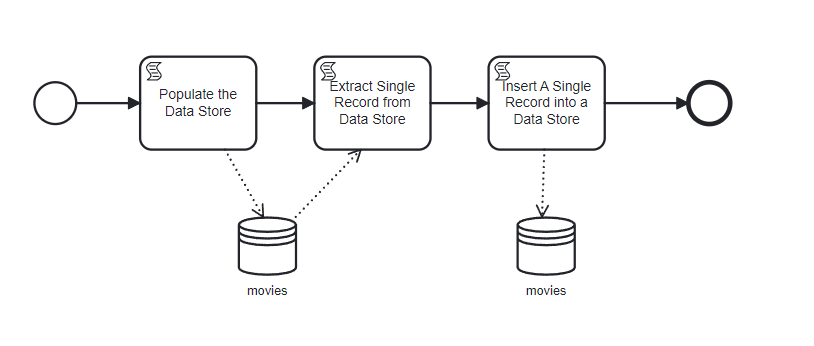
Start Event: Initiates the movie data management workflow.
Script Task: Populate Data Store
Uses a script to populate the “Movies” data store with detailed information about characters in various movies, demonstrating the KKV structure (Director -> Movie -> Character Attributes).
Script Task: Extract Single Record
Retrieves specific movie details from the “Movies” data store.
The KKV data store places a function pointer in task data when a read arrow is drawn from the data store. This allows just reading data for a top-level/secondary key combination without loading all the data. In this case, the read would look like
django = movies("Quentin Tarantino", "Django Unchained").
Script Task: Insert A Single Record
Adds a new movie entry to the data store under a different key.
Demonstrates adding an entry for a Wes Craven movie to the “Movies” data store, showcasing how new data can be structured and inserted.
For a KKV, write the movies variable that will be read from task data and should be initialized to a new value that you intend to add or update:
movies = {
"Wes Craven": {
   "Swamp Thing":
   [ {"name": "Dr. Alec Holland", "actor": "Ray Wise", "description": "whatever"}]
} }
End Event: Marks the completion of the workflow. After running the process, you can view the new movie data in the data store:
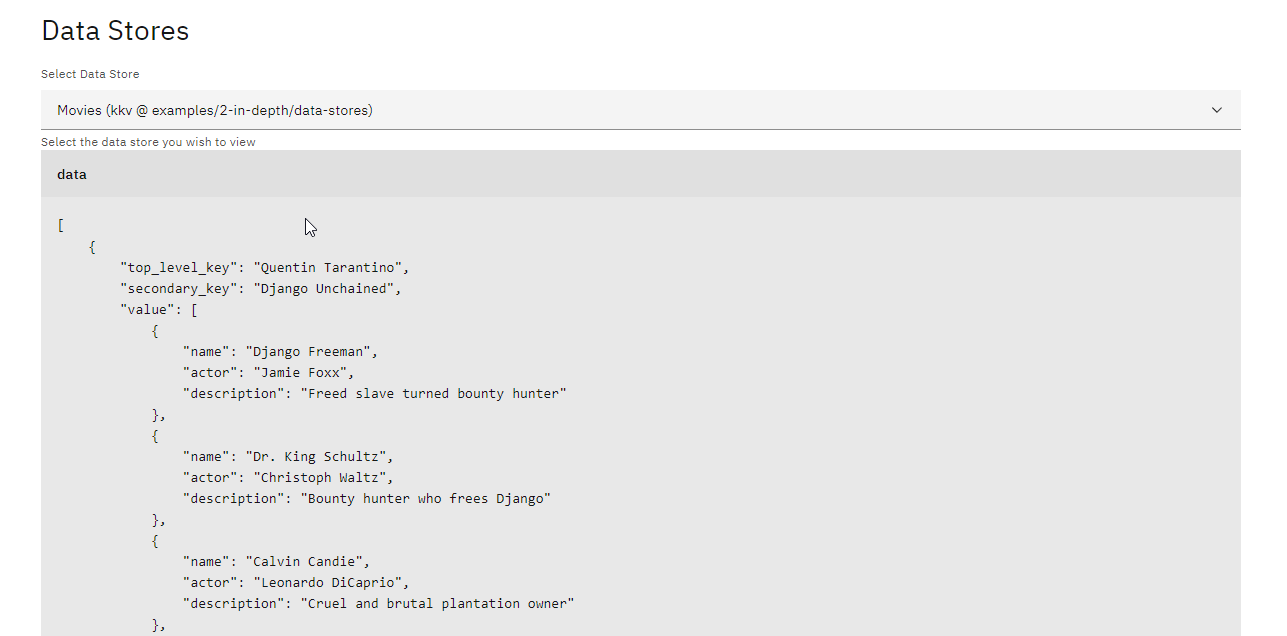
Modeling Data Store Interactions
Data Store Reference: Each script task interacts with a “Movies” data store, specified in the task’s properties. The data store’s KKV nature is indicated, allowing for structured data access and manipulation.
Selection of Data Source: In the properties section of the tasks, the “Movies” data store is selected as the data source, highlighting how BPMN tasks can be explicitly linked to specific data stores for operations.
JSON Data Store
JSON Data Stores are similar to KKV Data Stores however they are structured as json instead of a key-value pair.
BPMN Example: German Philosophers
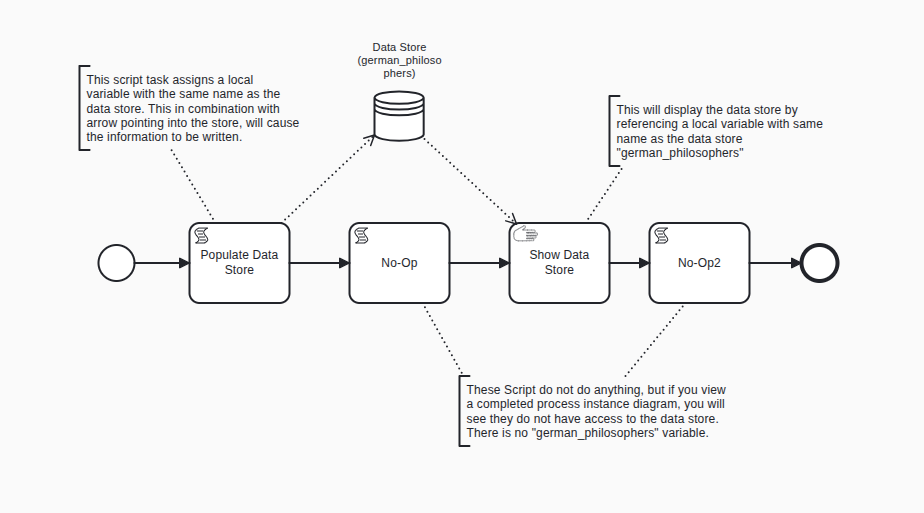
Start Event: Triggers the workflow.
Script Task: Populate Data Store
Populates the german_philosophers variable with the intended json and then sends it to the Data Store with same name as the variable
Script:
 german_philosophers = [
     {
         "philosopher": "Immanuel Kant",
         "works": [
             "Critique of Pure Reason",
             "Critique of Practical Reason",
             "Critique of Judgment",
             "Groundwork of the Metaphysics of Morals",
         ],
     },
     {
         "philosopher": "Georg Wilhelm Friedrich Hegel",
         "works": ["Phenomenology of Spirit", "Science of Logic", "Philosophy of Right"],
     },
 ]
Script Task: No-op
This is here so you can view the task data at this point
Manual Task: Show Data Store
Lists out the philosophers in a markdown table
Script Task: No-op2
This is here so you can view the task data at this point
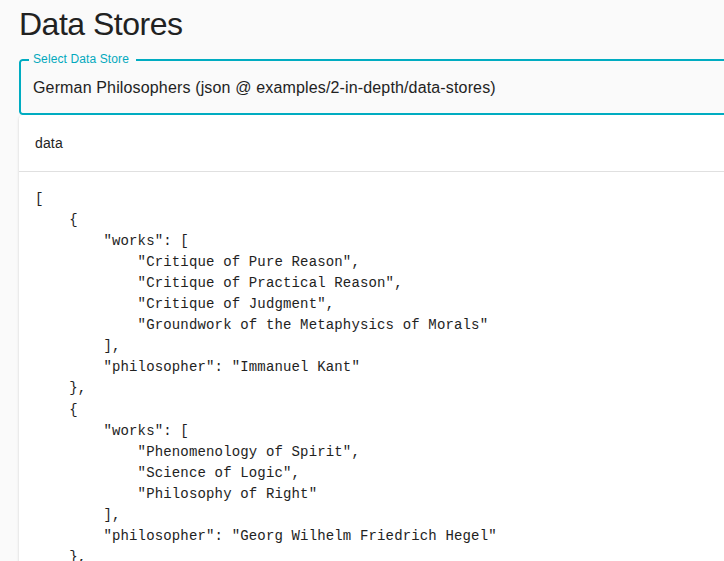
By integrating a JSON data store within a BPMN process, workflows can dynamically manage and interact with structured data.
JSON File Data Store
In BPMN (Business Process Model and Notation), incorporating a JSON file as a data store offers a versatile method for managing structured data throughout a process. A JSON data store is a structured file or set of files that uses the JSON format to store data.
JSON File Data Store: Gatorade Flavors
Before detailing the process flow, it’s crucial to introduce the JSON data store structure used in this example:
[
    {
        "name": "Glacier Freeze",
        "color": "#C0C0C0",
        "description": "Icy, refreshing citrus flavor"
    },
    {
        "name": "Fierce Grape",
        "color": "#AA77CC",
        "description": "Bold and intense grape flavor"
    },
    ...
    {
        "name": "X-Fruit Fusion",
        "color": "#D0DBFF",
        "description": "Mystery blend of multiple fruit flavors"
    }
]
This JSON array contains various Gatorade flavors, each with attributes for name, color, and description, serving as the data store for the BPMN process.
BPMN Example: Gatorade Flavors
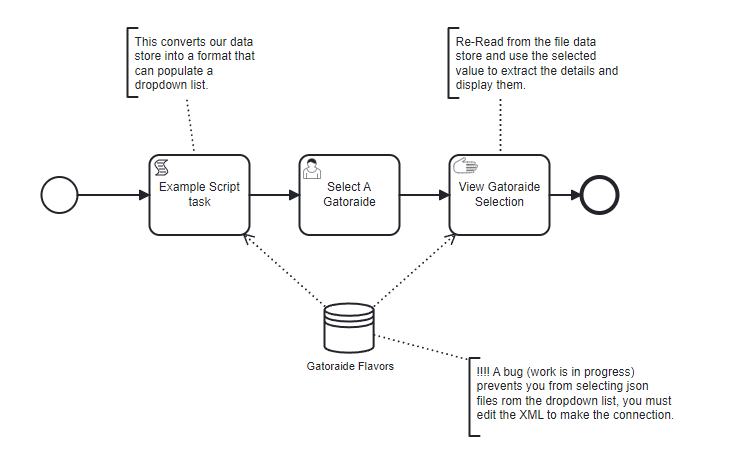
Start Event: Triggers the workflow.
Script Task: Populate Dropdown List
Converts the Gatorade flavors from the JSON data store into a format suitable for a dropdown list.
Script:
gator_select = []
for flavor in gatorade_flavors:
    gator_select.append({
        "label": flavor["name"],
        "value": flavor["name"]
    })
This task creates an array
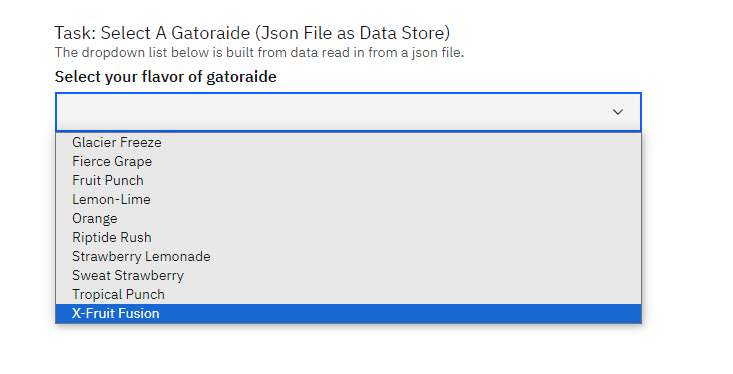
gator_selectwith objects formatted for dropdown list usage from thegatorade_flavorsarray.User Task: Select A Gatorade
Uses a dropdown list for users to select their Gatorade flavor.
Form Configuration:
{
  "title": "",
  "description": "The dropdown list below is built from data read in from a JSON file.",
  "type": "object",
  "properties": {
    "selected": {
      "title": "Select your flavor of Gatorade",
      "type": "string",
      "anyOf": [
        {% for flavor in gator_select %}
        {
          "type": "string",
          "enum": [{{ flavor.value | tojson }}],
          "title": {{ flavor.label | tojson }}
        }{% if not loop.last %},{% endif %}
        {% endfor %}
      ]
    }
  }
}
The JSON schema defines the structure for the user form, sourcing options from the
gator_selectarray.Older examples may use
options_from_task_data_var:gator_select; prefer Jinja-rendered schema values for new forms.
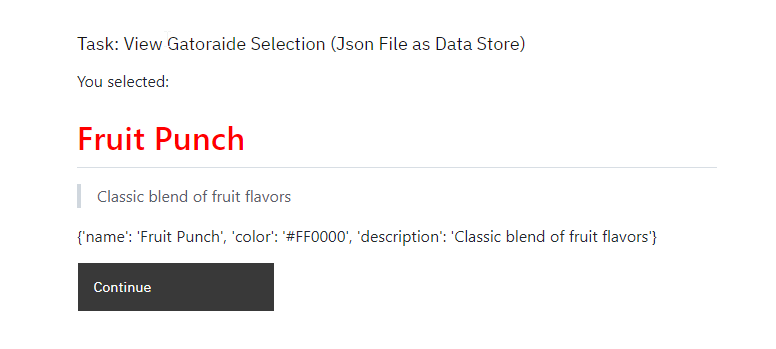
Manual Task: View Gatorade Selection
Pre-Script: Matches the user-selected flavor to its full details in the
gatorade_flavorsarray.
for flavor in gatorade_flavors:
    if flavor["name"] == selected:
        selected_flavor = flavor
Displays “You selected:”, followed by the detailed description of the selected flavor.
Output:
Note
⚠ In the data store creation, you will see fields like ‘Name’ and ‘Identifier’. If you are using script tasks that interacts with the data store, reference the identifier exactly as it is named in the data store configuration.