Decision Tables
DMN tables are powerful tools for modeling and implementing business rules and decision logic. They allow you to define rules and their associated conditions and actions in a structured manner. By evaluating the conditions in each rule, the DMN engine can determine which rules are triggered based on the provided inputs and execute the corresponding actions. This provides a flexible and configurable approach to decision-making in various scenarios.
A DMN (Decision Model and Notation) table consists of several components that help define the decision logic and structure the decision-making process. The main components of a DMN table are:
DMN Components
Input Variables: These are the variables that represent the information or data used as input for the decision. Each input variable is typically represented as a column in the table. Multiple columns represent multiple input variables.
Conditions: Conditions specify the criteria or constraints that need to be evaluated for each input variable. They define the rules or expressions that determine when a particular decision rule should be triggered. Conditions are usually represented in the “When” column of the table.
Actions or Expressions: Actions or expressions define the operations or calculations that are executed when a specific rule is triggered. They represent the logic associated with the decision outcome and are represented in the same row as the conditions in the table.
Decision Rules: Decision rules are the individual rows in the DMN table. Each rule represents a specific combination of conditions and actions that define the behavior or logic for a particular scenario. Decision rules combine the input conditions and output actions in a structured manner.
Hit Policy: The hit policy determines how the decision engine selects or combines the applicable decision rules when multiple rules are triggered. It defines the behavior for resolving conflicts or overlaps between rules. Common hit policies include “First,” “Unique,” “Priority,” “Any,” and “Collect.”
Hit Policy
Unique: Only one rule can match the given inputs. If multiple rules match, it results in an error or an undefined outcome. This policy ensures that only one result is produced.
First: The first rule that matches the inputs is selected, and its corresponding output is returned. Other matching rules are ignored. This policy is useful when you want to prioritize the order of rules.
Collect: All rules that match the inputs are selected, and the outputs from those rules are collected and returned as a list or a collection. This policy allows for gathering multiple results.
Python Expressions in SpiffWorkflow DMN Tables
SpiffWorkflow supports DMN tables for modeling rule-based decisions. Unlike most DMN engines that rely on FEEL (Friendly Enough Expression Language), SpiffWorkflow exclusively uses Python syntax for all expressions inside DMN tables.
This section provides a comprehensive guide on how to write and structure valid Python expressions for decision logic.
Basic Python Expression Patterns
1. Comparison Operators
Operation |
Syntax Example |
Description |
|---|---|---|
Equals |
|
Check for equality |
Not equals |
|
Opposite of equality |
Greater than |
|
Numeric comparison |
Less than |
|
Numeric comparison |
Range check |
|
Compound expression (inclusive) |
2. Logical Operators
Use and, or, and not for combining multiple conditions:
status == "active" and verified == True
not has_subscription or trial_expired
score > 70 or level == "admin"
3. Membership: in Operator
To check if a value is part of a list:
in ["pending", "approved", "processing"]
A space is required before the in keyword for it to parse correctly in SpiffWorkflow.
Correct:
in ["chicken", "turkey"]
Incorrect:
in["chicken", "turkey"]
4. Boolean Values
Python boolean literals must be capitalized:
True, False
Example:
has_cheese == True
5. String Matching
category == "electronics"
username.startswith("guest")
If you need partial matching:
"@gmail.com" in email
6. Arithmetic Operations
quantity * price
discount = 0.10 if is_member else 0
total > 100 and total < 500
7. Ternary Conditional Logic
You can use inline conditions with if...else:
5 if priority == "high" else 2
Useful in output columns for dynamic return values.
Therefore, Always test your decision tables by running the workflow, not just relying on the UI’s validation. Stick to Python list and logic patterns and use short, atomic rules and prefer clarity over compactness.
Finally, Keep your expression formatting clean (indentation, spacing) even within strings.
Using Numeric Ranges in DMN Tables for BPMN Workflows
In BPMN workflows that utilize DMN tables to make decisions based on numerical data, it is crucial to use the correct syntax for specifying numeric ranges.
The recommended syntax for defining numeric ranges in a DMN table is shown in the example. It is straightforward and ensures that the DMN engine evaluates the conditions correctly without errors.
If specifying a numeric range for a decision, use the proper DMN format:
Incorrect Format: [0..5]
Correct Format: <=5
Expression for Range:
For values from 7 to 10 inclusive: 7 <= ? <= 10
For values from 10 to 12 inclusive: 10 <= ? <= 12
These expressions set up the conditions in a way that the DMN engine can clearly understand and process, ensuring that the workflow behaves as expected based on the input values.
Example: Calculating Sandwich Cost Using a DMN Table
DMN (Decision Model and Notation) tables in SpiffWorkflow are ideal for modeling rule-based decisions like pricing, approvals, and conditional flows. In this example, we’ll walk through creating a sandwich cost calculator using a DMN table, where different ingredients contribute to the total cost.
You want to calculate the total cost of a sandwich based on:
Whether it has cheese
The type of bread
The selected meat
Each component adds a specific amount to the total cost. The table should allow multiple matches and sum up all the applicable values.
Step 1: Create a New DMN File
Navigate to your process model in SpiffWorkflow. Click on Add File > New DMN File. Open the file to begin editing the decision table.
Step 2: Define the DMN Table
Set the table name as Sandwich Cost. Choose Collect (Sum) to sum all matching rows’ cost_components.
Step 3: Add Decision Logic
Your decision table should have the following input columns:
cheese (
boolean)bread (
"white","wholemeal","multigrain")meat (
"chicken","beef","pork","turkey")
Add a single output column:
cost_components (
number)
While using the editor, many users may enter “OR”-style logic like this:
"chicken", "turkey"
or
"chicken" | "turkey"
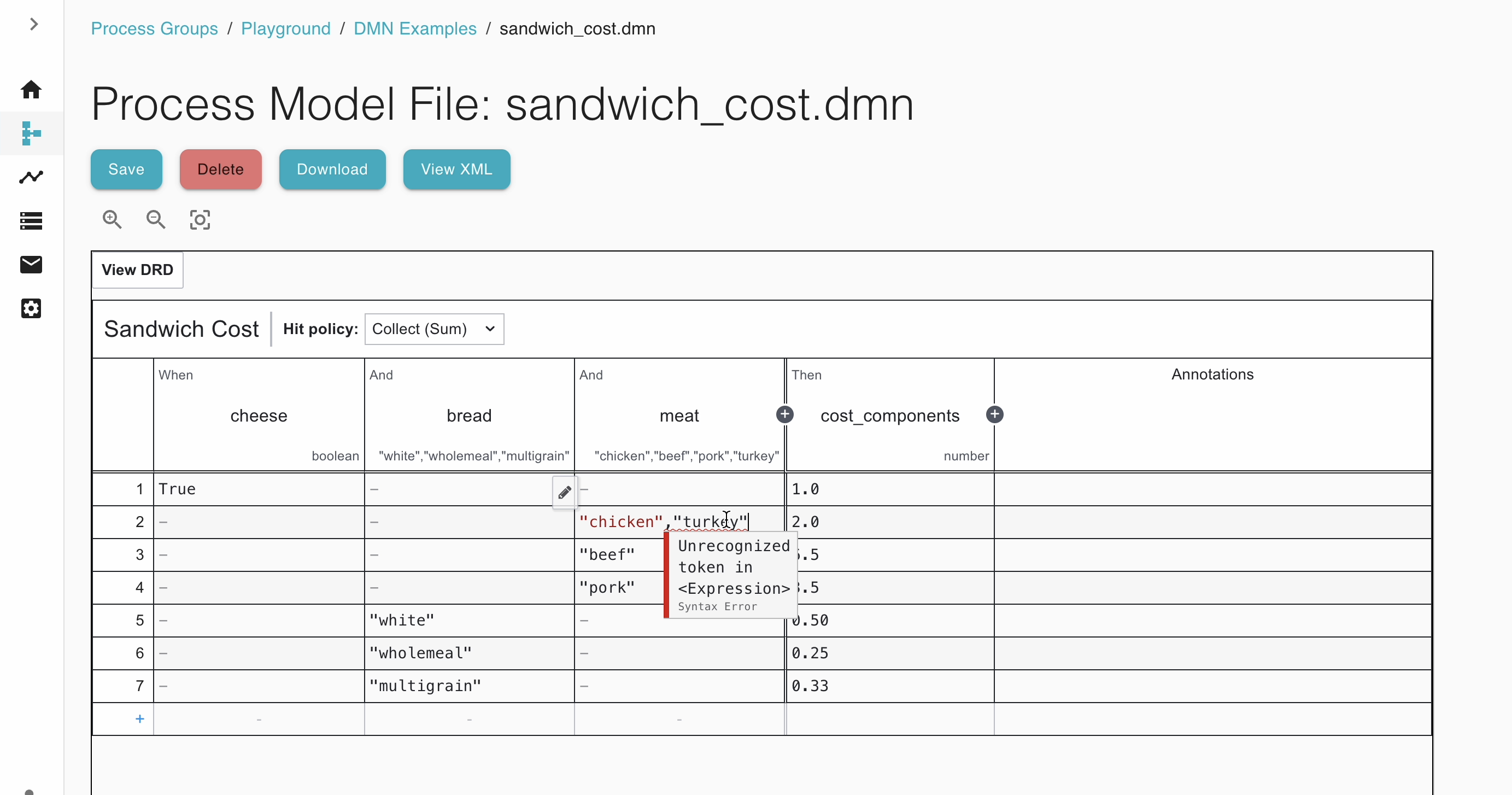
These seem intuitive but result in syntax errors, as seen in the screenshot. Even when selected using the UI’s dropdown, the editor does not recognize these as valid expressions, and the process will fail to match the expected inputs during runtime.
To correctly express that a value can match one of several options, use the Python in expression with a list:
in ["chicken", "turkey"]
Important
You must include a space before the in keyword. If you write in[...] without a space, the parser will throw a syntax error.
Step 4: Evaluate the Table
Let’s say the sandwich has:
Cheese:
TrueBread:
"multigrain"Meat:
"turkey"
The rules that will match are:
Row 1 (cheese = True):
+1.0Row 2 (meat in chicken or turkey):
+2.0Row 7 (bread = multigrain):
+0.33
Total cost = 1.0 + 2.0 + 0.33 = 3.33
The Collect (Sum) policy enables cumulative logic.