File Upload and Markdown Link Display
This guide documents a process in Spiffworkflow where a user uploads a file, the system generates a downloadable markdown link to the file, and then displays that link back to the user in a follow-up task.
This can be used for tasks such as submitting documents, generating downloadable reports, or capturing file inputs for later reference or distribution.
Process Overview
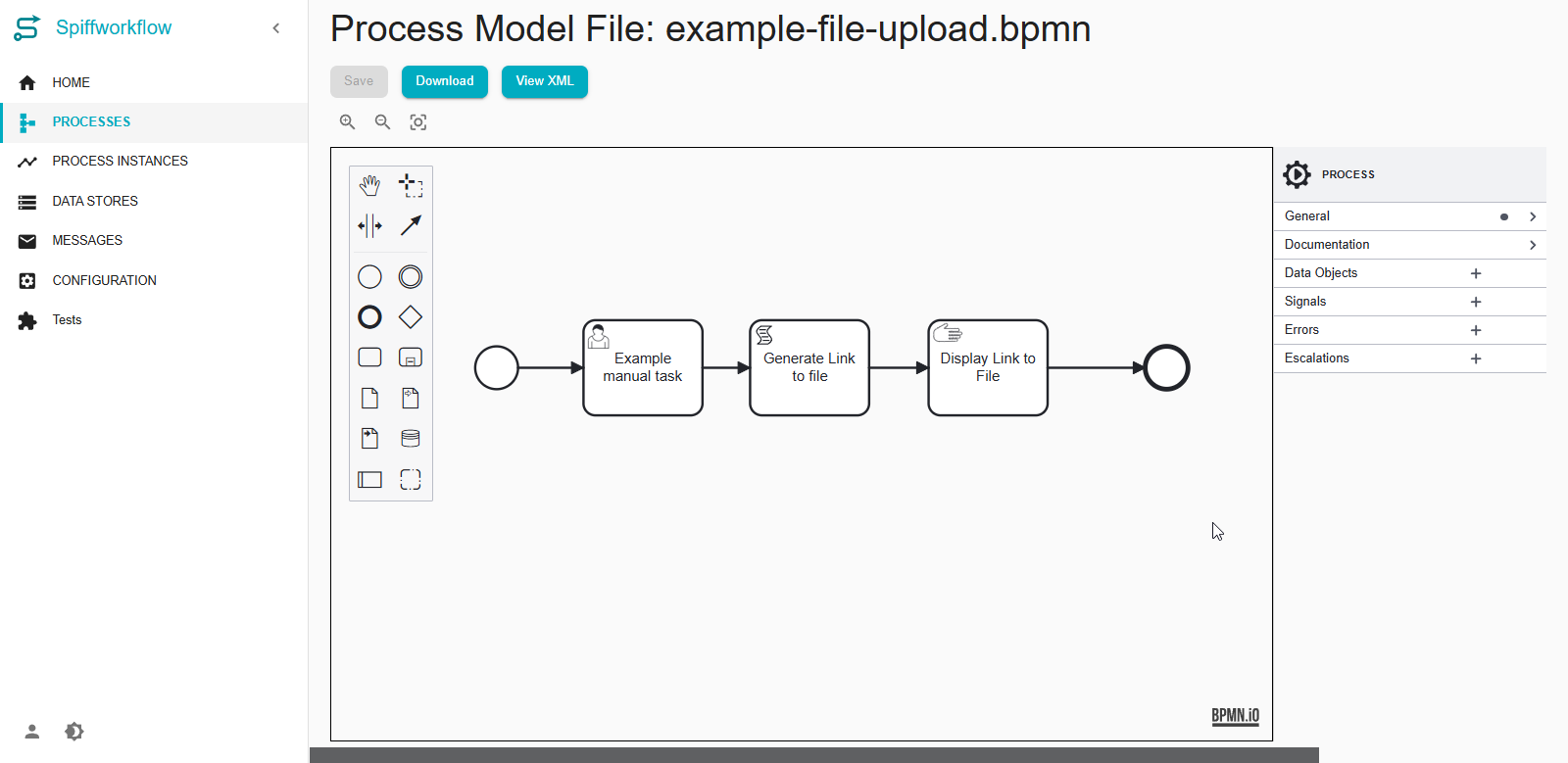
This process allows a user to upload a file using a form. The uploaded file is converted into a markdown-compatible link by a script, and the link is then shown to the user in a final confirmation task.
Workflow Steps:
User uploads a file in the initial task.
A script task converts the file into a markdown download link.
A confirmation message is displayed with the link.
Task Configuration Details
1. User Task: Example Manual Task
Type: User Task
Purpose: Collect a file upload from the user.
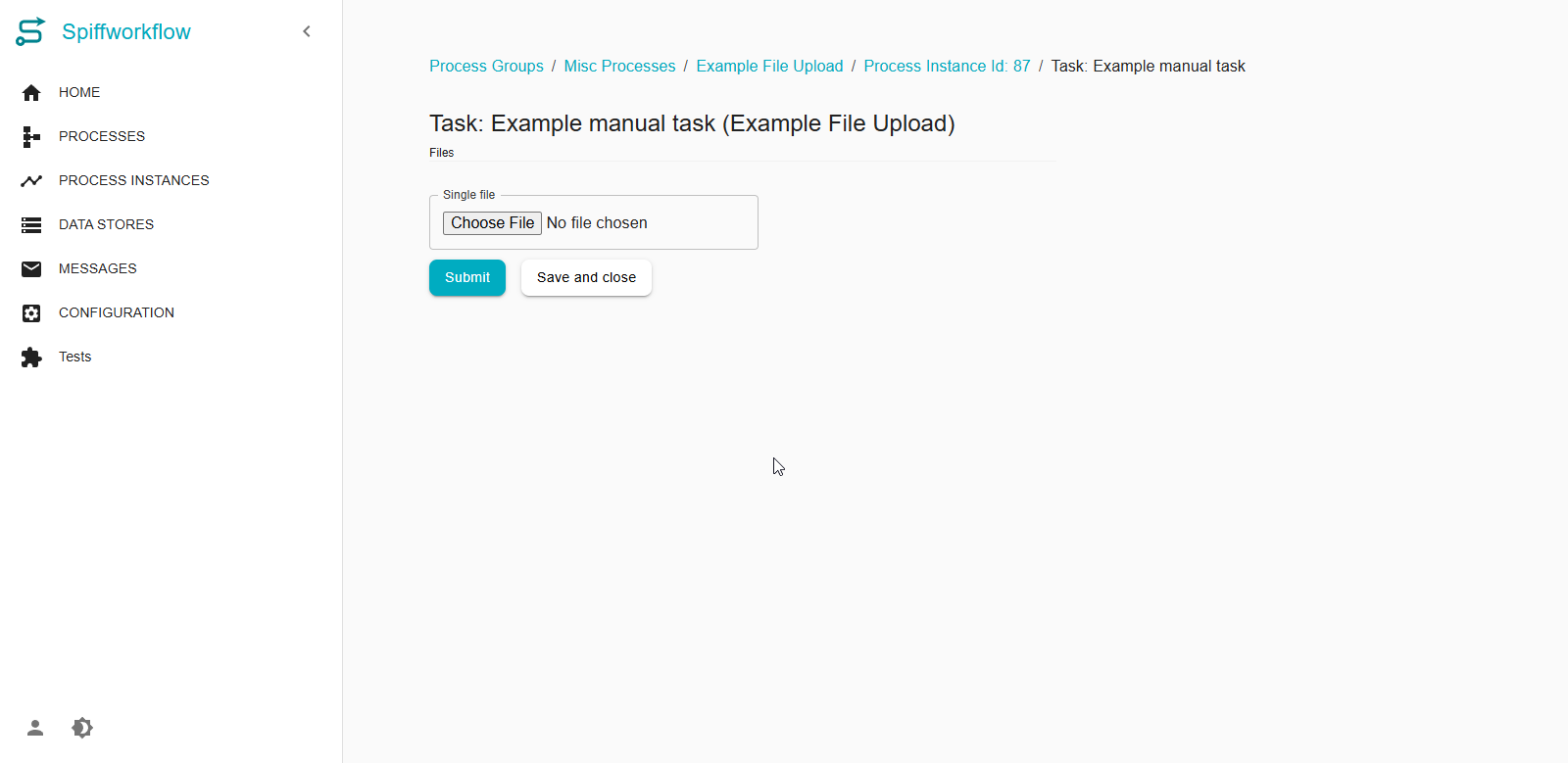
UI Output: Presents a file selection form with a “Submit” and “Save and Close” button.
JSON Schema (Form Definition)
{
  "title": "Files",
  "type": "object",
  "properties": {
    "file": {
      "type": "string",
      "format": "data-url",
      "title": "Single file"
    }
  }
}
file: This property captures a file as a data URL string. The file is stored in a process variable namedfile.
UI Schema
{
  "filesAccept": {
    "ui:options": {
      "accept": ".pdf"
    }
  }
}
The
"accept"attribute can be configured to restrict allowed file types (e.g., “.pdf”, “.png”, “.jpg”).
UI Behavior
Users click “Choose File” and select a document to upload.
After selection, the file name, type, and size are shown.
On clicking “Submit”, the file is passed as a data URL to the next task.
File Upload Step
The interface displays the uploaded filename, type, and size before submission.
2. Script Task: Generate Link to File
Type: Script Task
Purpose: Convert the uploaded file into a markdown-compatible download link.
Script
link = markdown_file_download_link(file)
file: This is the input variable from the previous task.markdown_file_download_link()is a built-in function that generates a string like:[filename.ext](https://your-server.com/path/to/file)
The output is stored in the process variable
link.
3. Manual Task: Display Link to File
Type: Manual Task
Purpose: Show a confirmation message to the user with a clickable link.
Instructions (Displayed Text)
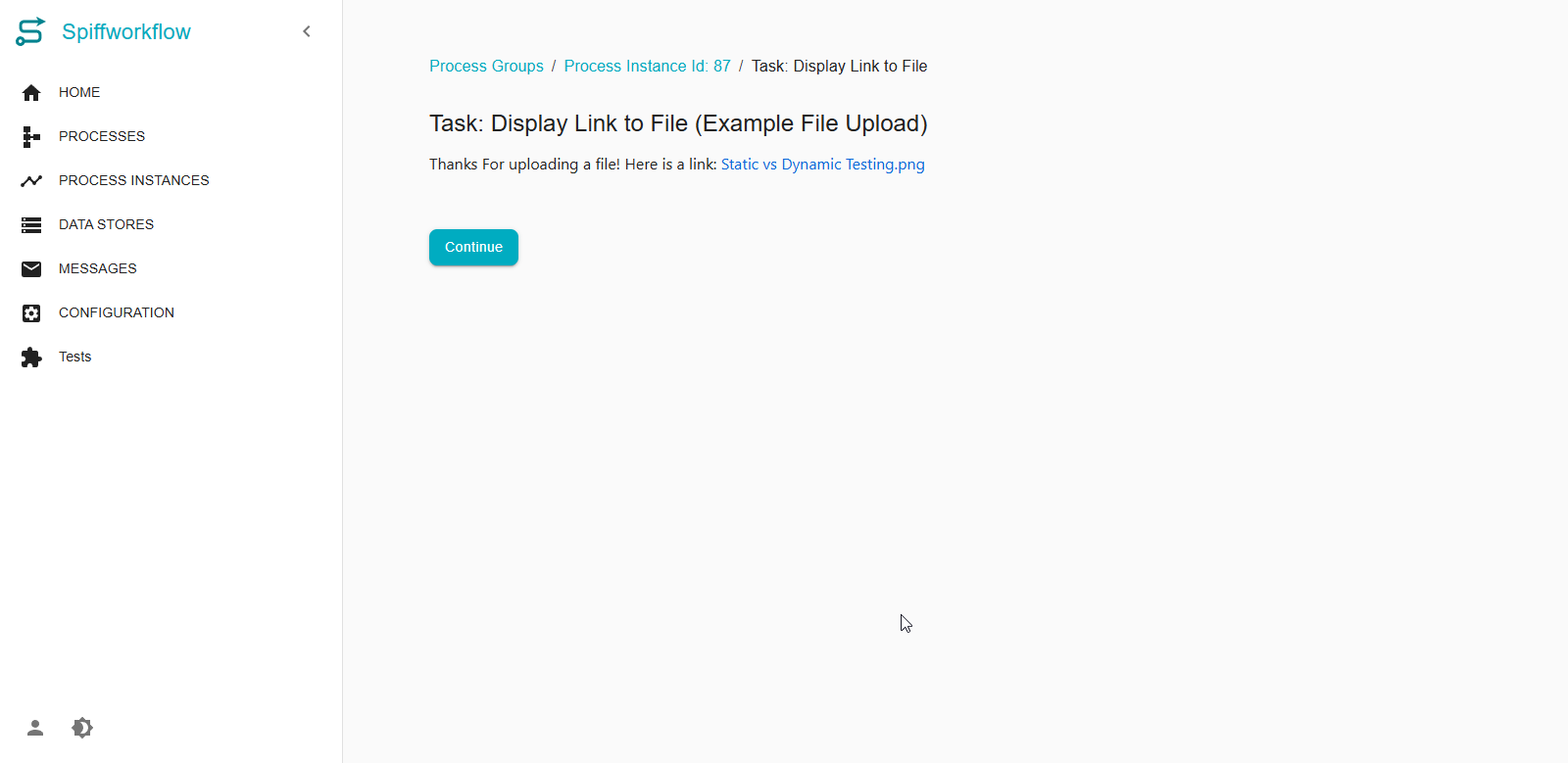
Thanks for uploading a file!
Here is a link: {{link}}
The
{{link}}variable is dynamically replaced with the markdown download link generated in the previous step.
Display Link to File Step
This shows a text message with a link: [filename.ext]”
You can modify the final message formatting to include file size or type if those details are captured.